
FAQ
FAQs - Shopping Frequently Asked Questions
Questions
1. Having a problem placing an order?
2. Which browser is recommended for best viewing and shopping experience?
3. What are cookies and how do we use them?
4. How to enable cookies in Google Chrome?
5. How to enable cookies in Firefox?
6. How to enable cookies in Internet Explorer version 9.0 - 11.0?
7. How to clear your browser history, cache and cookies in Google Chrome?
8. How to clear your browser history, cache and cookies in Firefox?
9. How to clear your browser history, cache and cookies in Internet Explorer vesion 9.0 - 11.0?
10. How to set Compatibility Mode in Internet Explorer 11 to view the website?
11. How do I track my order?
Answers
1. Having a problem placing an order?
We do our best to make ordering products from us as easy as possible. On occasion you may have trouble completing your order. This guide will help you address the most common problems.
1. Make sure your are using one of the recommended browsers.
2. Clear your browser history, cache and cookies.
3. Close and reopen your browser.
4. Try to place your order again.
If after you followed these troubleshooting steps you encounter a persistent problem, please get a screen shot of the error and contact us with as much information about the problem as possible.
2. Which browser is recommended for best viewing and shopping experience?
We try to ensure that our online store works well on as many web browsers as possible, however you are likely to have a better experience with some over others.
The following list details the browsers we currently recommend for the best viewing experience.
PC
- Google Chrome
- Firefox
- Opera
- Internet Explorer (version 9 and 10)
- Internet Explorer (Version 11): Use Compatibility Mode
Mac
- Google Chrome
- Firefox
- Opera
- Safari
Linux
- Google Chrome
- Firefox
- Opera
3. What are cookies and how do we use them?
Cookies are small text files that are placed on your computer or mobile device when you browse websites. We use them, as almost all websites do, to help provide you with the best shopping experience.
Our website will only use essential cookies that enable features and services like:
- User login information
- Shopping cart
- Discount Coupons
- Gift Cards
- Address verification
- Email order confirmation
- Share or like pages with social networks like Facebook
- Send this to a friend
To enable cookies in your web browser, you need to specify this in the browser preferences. Most web browsers will have a "Preferences" tab or "Privacy" setting available in the Help menu. It is here that you can enable your web browser to "Accept Cookies" or "Accept Third-Party Cookies.
4. How to enable cookies in Google Chrome?
Click the Chrome menu  on the browser toolbar.
1. Select Settings.
2. Click Show advanced settings.
3. In the "Privacy" section, click the Content settings button.
4. In the "Cookies" section, please select : Allow local data to be set
(recommended)
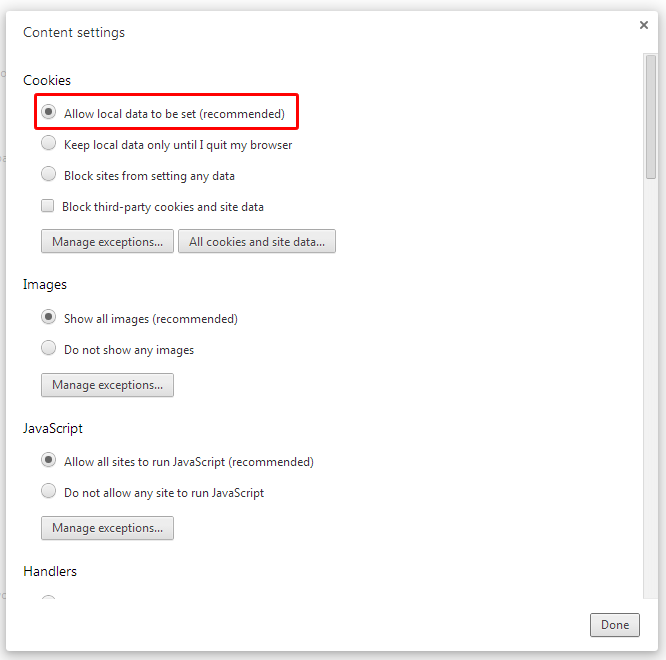
5. Click on Done
5. How to enable cookies in Firefox?
1. At the top of the Firefox window, click on the Tools menu and select Options...
2. Select the Privacy panel.
3. Set Firefox will: to Use custom settings for history.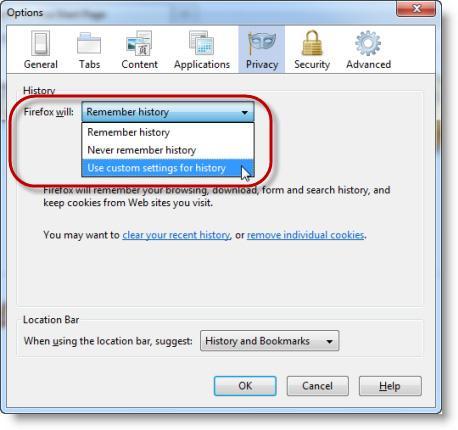
4. Check mark Accept cookies from sites to enable Cookies (**make sure this is checked)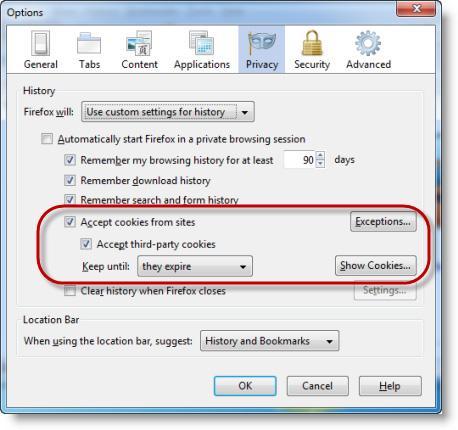
5. Choose Keep until they expire as your default option for "Choose how long cookies are allowed to be stored:"
6. Click OK to close the Options window
7. Close all Firefox browser windows and then re-open Firefox.
6. How enable cookies in Internet Explorer version 9.0 - 11.0?
- Click on the gear-wheel icon at the top right of the browser window.
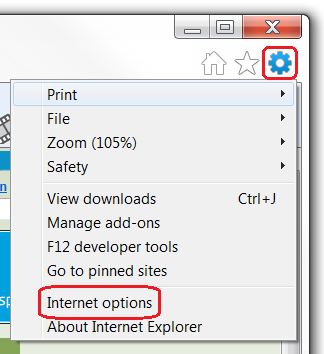
- Click "Internet Options".
- Change to the "Privacy" tab.
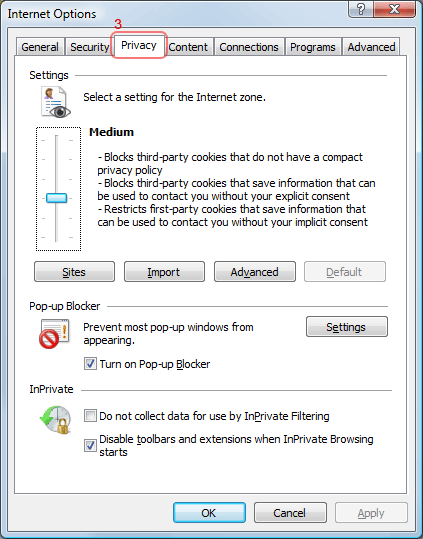
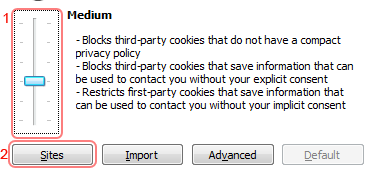
- You now have two options depending on how much you want to restrict cookies:
Automatic cookie handling
- Set the slider to "Medium".
7. How to clear your browser history, cache and cookies in Google Chrome?
- Click the Chrome menu
 on the browser toolbar.
 - Select Tools.
- Select Clear browsing data.
- In the dialog that appears, select the checkboxes for the types of information that you want to remove.
- Use the menu at the top to select the amount of data that you want to delete. Select beginning of time to delete everything.
Check the boxes for the types of information you need to delete.
- Clear browsing history
- Empty the cache
- Delete cookies
6. Click Clear browsing data.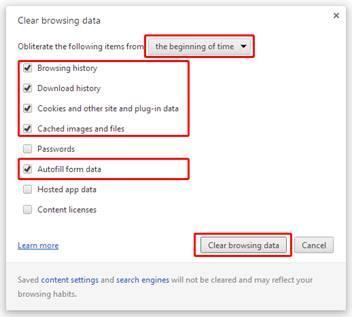
8. How to clear your browser history, cache and cookies in Firefox?
To delete all cookies stored on your computer, your browser history and cache:
1. At the top of the Firefox window, click on the Firefox button, go over to the History menu and select Clear Recent History....
2. Set Time range to clear to Everything.
3. Click on the arrow next to Details to expand the list of history items.
4. Select Cookies and make sure that other items you want to keep are not selected.
5. Click Clear Now to clear the cookies, cache and browser history and close the Clear Recent History window.
9. How to clear your browser history, cache and cookies in Internet Explorer vesion 9.0 - 11.0?
This document explains how to clear the cache and cookies in Internet Explorer 9, 10 and 11.
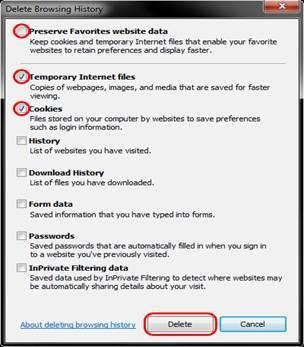
- Select Tools (via the Gear Icon) > Safety > Delete browsing history....
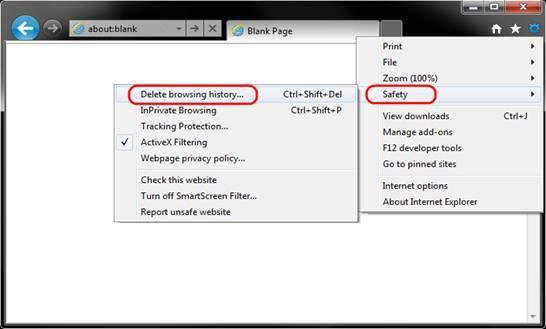
- Make sure to uncheck Preserve Favorites website data and check both Temporary Internet Files and Cookies then click Delete.
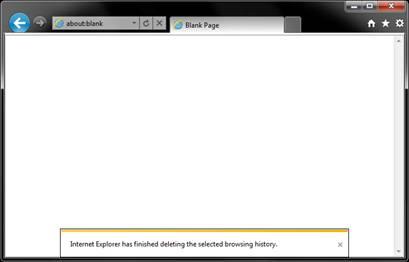
- You will get a confirmation at the bottom of the window once it has successfully cleared your cache and cookies.
10. How to use Compatibility Mode in Internet Explorer 11 to view the website?
- Click the Gear icon on the top right corner of the IE 11 browser. See below.
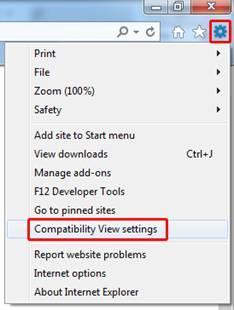
- Add underworks.com to the list by typing it in the top text field.
- Select Add.
Once you turn on Compatibility View, Internet Explorer will automatically show our website in Compatibility View each time you visit. You can turn it off by removing it from your compatibility list.
11. How do I track my order?
You will receive an email when your order has been shipped. This email will include carrier information and the tracking number as well as the link to the carrier site to track the order.
Guest and registered customers can also check their order status on our website by clicking on the "Check Order Status" link available at the bottom of every page. Type in the order number exactly as it appears on your order confirmation email and your email address and our system will deliver the shipping details.
Registered customers can also log on to their account and click on order history to check the status of an order.
Contact us
Monday-Friday 11:00 AM-7:00 PM EST
USA and Canada Phone: 1-800-242-4224
International: 011-305-668-5151
Fax: 305-668-1770
Email: care@underworks.com